How to Install Manok Na Pula Mod APK (Full 2026 Guide)
A foolproof, device-by-device guide to installing the Manok Na Pula Mod APK on Android, plus fixes for every common error: “App not installed”, parsing errors, Play Protect warnings and how to keep your save data when you switch builds.
Installing a modded APK is simple once you know the two things that trip most people up: turning on install permission for your specific browser, and removing the official version first so the signatures do not clash. This guide walks you through both, step by step, for every major Android phone, and fixes every error you might hit along the way.
What a Mod APK Is and How the Install Works
Short answer: a mod APK is the original game re-packaged with unlocked features. You install it exactly like any Android app file, the only extra steps being to allow installs from your browser and to remove the official version first.
An APK is simply the file format Android uses to install apps, the same format the Play Store delivers behind the scenes. A modded APK takes the original Manok Na Pula and edits it so features like unlimited money and all chickens are unlocked, then re-signs it so it can be installed outside the store. Because it is re-signed, Android treats it as a different app from the official one even though they share the same package name, which is the single reason most install errors happen. Understanding this makes every fix below obvious: you are always either granting install permission, or clearing a signature clash.
What You Need Before Installing
Storage
You need roughly 300 MB of free space for the 135 MB download plus the space Android uses to unpack and install it. If your phone is nearly full, clear a little space first, otherwise the install can stop halfway.
Install permission
Android blocks apps from outside the Play Store by default. You will need to allow “Install unknown apps” for whichever browser or file manager you use to open the APK. We show the exact path for each phone below.
A complete file
An interrupted download can look finished but be missing data, which causes a parsing error. Always let the download complete fully, and check the file size is close to 135 MB before you tap it.
Before You Install: Make Sure the File Is Safe
Short answer: download only from a trusted source, scan the file, and match its SHA-256 hash to the one we publish. A Play Protect warning is normal and does not mean the file is unsafe.
The most important safety step happens before you tap install. Because any APK from outside the store carries some risk, only download from a source you trust, and verify the file before you open it. We publish a VirusTotal scan link and the file’s SHA-256 hash on the download page so you can confirm your copy is exactly the one we scanned and nothing was altered along the way. Once that checks out, the Play Protect warning you see during install is simply Android noticing the file is not from the Play Store, which is expected for every mod. For a full breakdown of malware, ban risk and data privacy, read our Is Manok Na Pula Mod APK Safe guide before installing.
Android Version and Permission Model: What Changes Where
The way you allow installs depends on your Android version. Here is the quick map.
| Android version | Where to allow installs | Notes |
|---|---|---|
| 5.0 to 7.1 | Settings › Security › Unknown sources (one global toggle) | A single switch covers everything |
| 8.0 to 12 | Settings › Apps › [your browser] › Install unknown apps › Allow | Per-app permission, not global |
| 13, 14 and newer | Same per-app path, but off by default and reset more aggressively | Enhanced Play Protect may re-scan after install |
Enabling Installs by Device Maker
Every brand hides the setting in a slightly different place. Find yours below.
Samsung (One UI)
Settings › Apps › tap your browser › Install unknown apps › turn on “Allow from this source”. Some One UI versions also route this through Settings › Biometrics and security › Install unknown apps.
Xiaomi, Redmi and POCO (MIUI / HyperOS)
Settings › Apps › Permissions › Install unknown apps › choose your browser › Allow. MIUI also shows its own security scan when you install; tap “Install anyway” rather than dismissing it, or the install fails silently.
OnePlus, Realme and Oppo
Settings › Apps & permissions (or Apps) › Special app access › Install unknown apps › pick your browser › Allow. Realme UI and ColorOS use almost the same path.
Google Pixel and stock Android
Settings › Apps › Special app access › Install unknown apps › select your browser › Allow from this source.
Vivo, iQOO, Tecno and Infinix
Settings › More settings or Apps › Install unknown apps (or “Install external source”) › enable for your browser. Some budget models label it “Unknown sources” under Security even on newer Android.
Enabling Installs by Browser
Because the permission is per-app, the browser you download in matters. Grant permission to the exact one you use.
- Chrome: the most common. When you tap the APK, Chrome prompts you to open settings and allow it once.
- Samsung Internet: grant it separately even on a Samsung phone; it is a different app from Chrome.
- Firefox and Edge: each needs its own permission. If you switch browsers, you switch which app needs the toggle.
Step by Step: Installing the APK
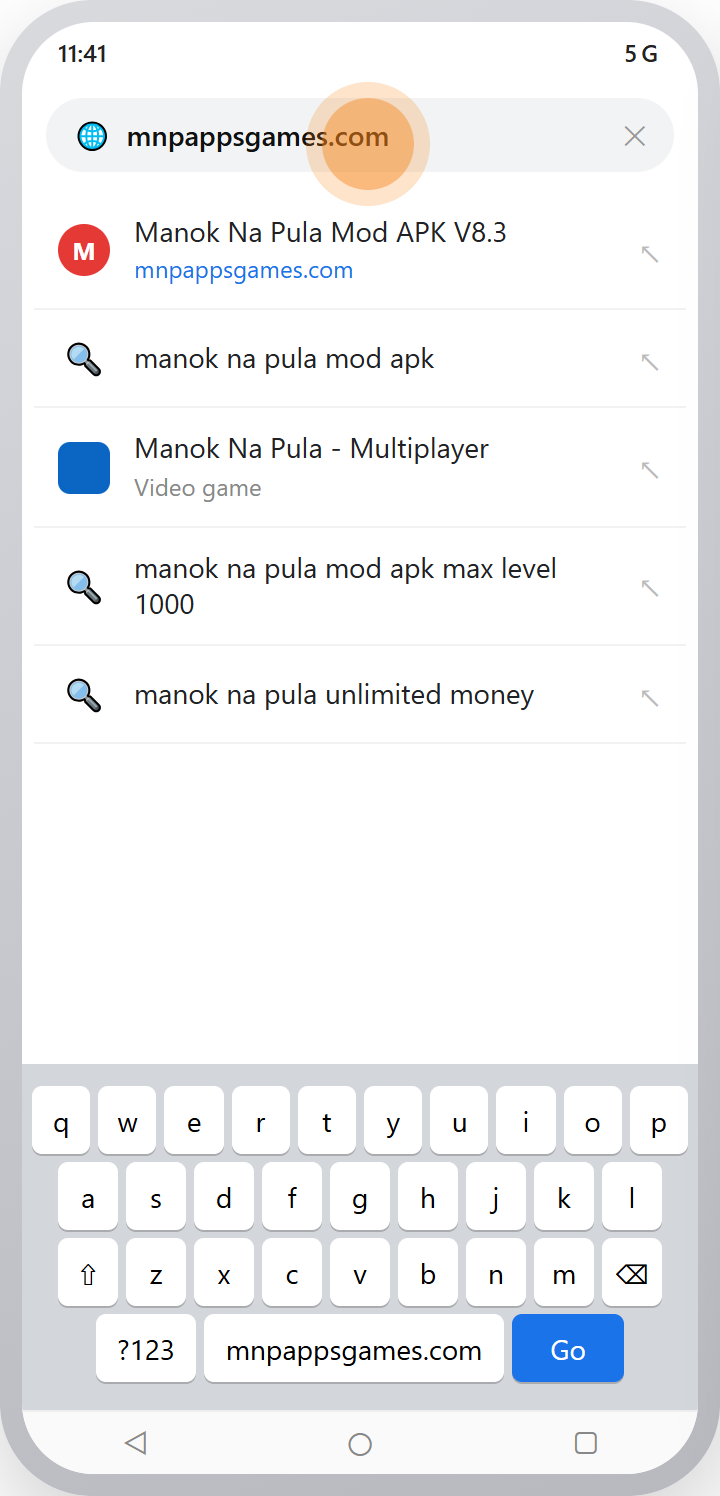
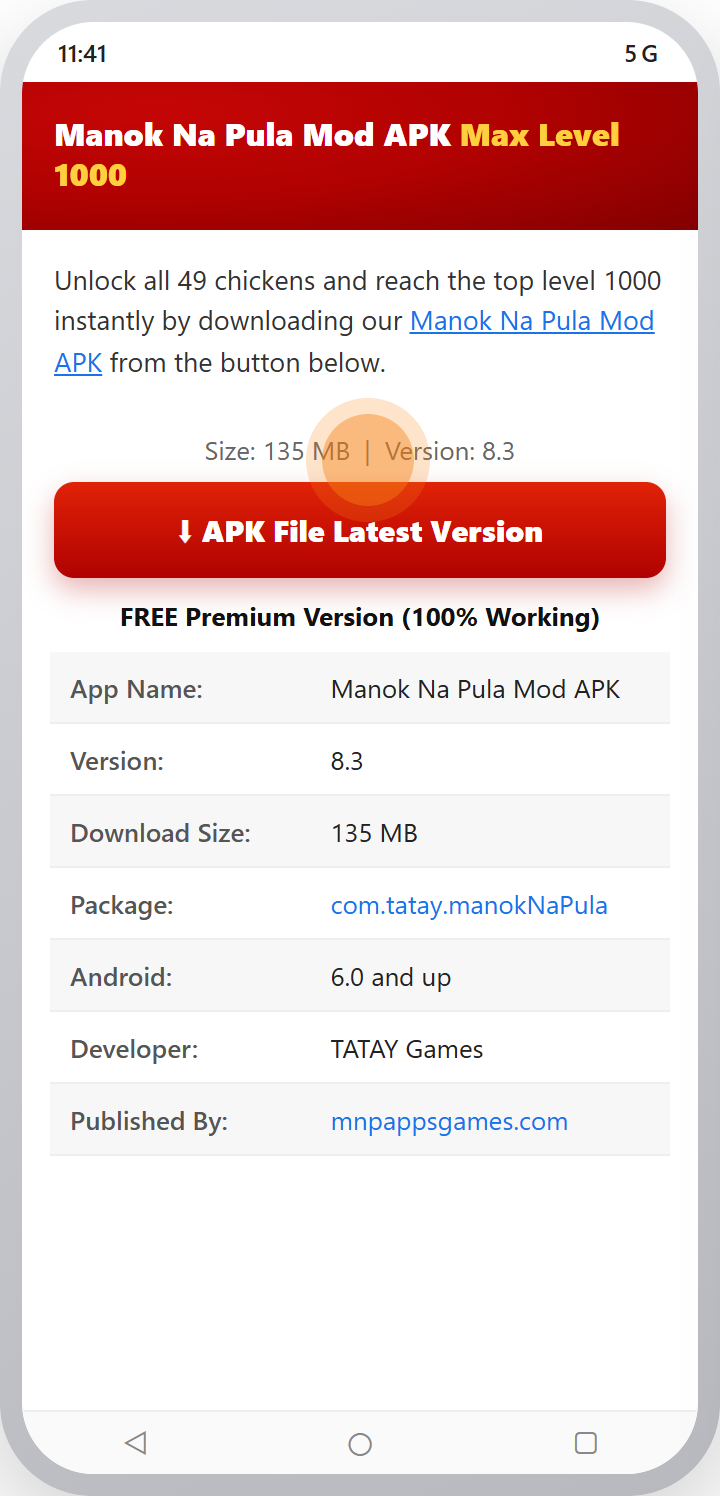
- Tap the Download button above and let the APK finish downloading fully.
- If you have the official Manok Na Pula installed, uninstall it first (see the save-data section below to keep your progress).
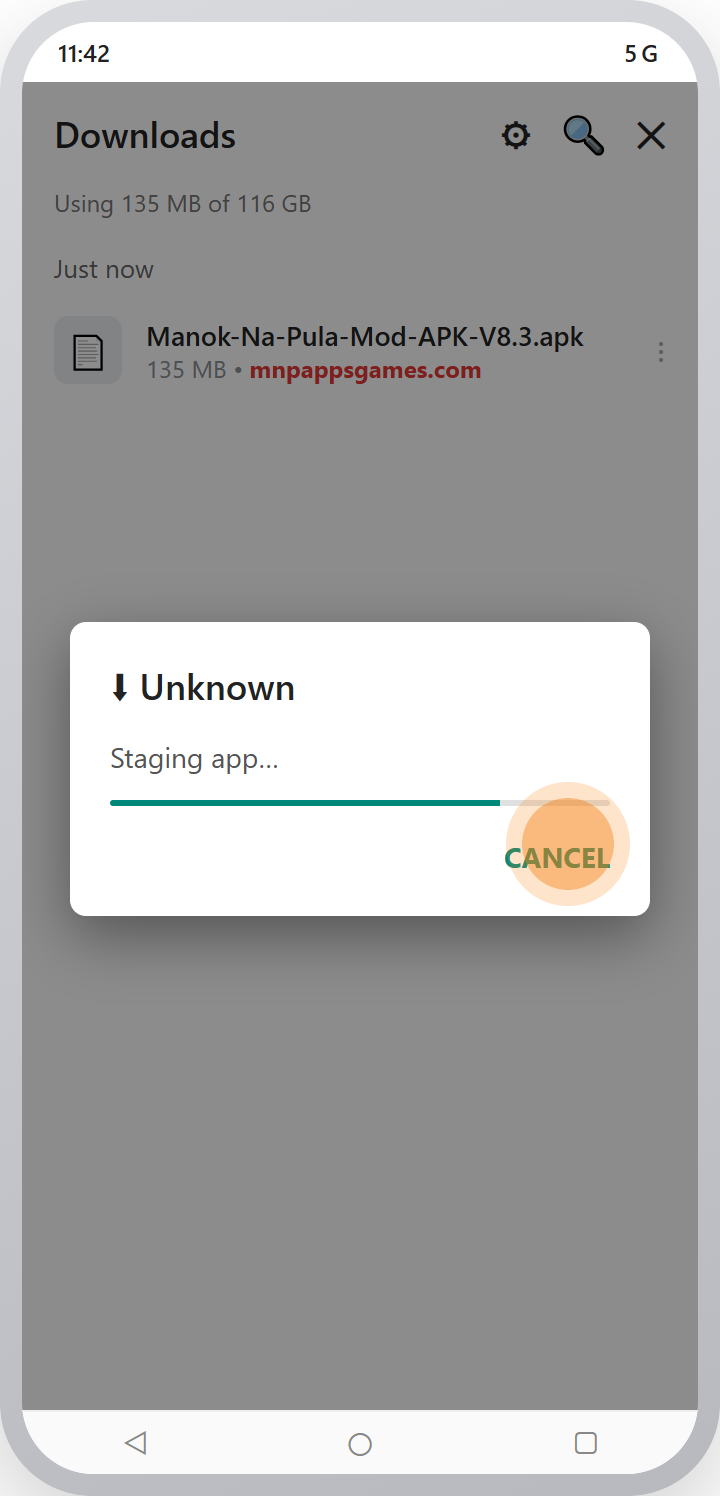
- Open the downloaded file from your browser’s download notification or the Downloads folder.
- When Android asks, allow install from this source using the path for your phone above.
- Tap Install and wait a few seconds.
- If Play Protect warns you, tap “Install anyway” or “More details › Install anyway”.
- Open the game, grant storage permission on first launch, and enjoy the unlocked garage of chickens.
Why Google Play Protect Flags the Install (and What to Do)
Short answer: Play Protect warns about every sideloaded APK because it did not come from the Play Store. It is not the same as finding a virus, and you can safely continue when you trust the source.
Standard block
You see “Unsafe app blocked” or “app not scanned”. Tap “More details” then “Install anyway”. You can re-enable Play Protect afterward so it keeps watching the rest of your phone.
Enhanced Play Protect (Android 13 and newer)
Newer phones may auto-remove a flagged sideload shortly after install, which is why some players say the app “disappeared”. If this happens, open the Play Protect settings, allow the app, and reinstall.
Play Services disabled
If you have disabled Google Play Services, some install prompts behave oddly. Re-enable Play Services, install, then adjust settings again if you wish.
Fixing “App Not Installed”: the Signature Mismatch Walkthrough
Short answer: “App not installed” almost always means the official version is still on your phone with a different signature. Uninstall the original Manok Na Pula, reboot, then install the mod.
Because the mod shares the same package name (com.tatay.manokNaPula) as the official game but is signed differently, Android refuses to install one over the other. The fix is a clean removal:
- Uninstall the official Manok Na Pula.
- On Samsung or Xiaomi, also clear any leftover app data if the uninstall left a folder behind.
- Reboot the phone to clear the package manager cache.
- Install the mod APK fresh.
Crashes, Black Screens and Other Errors
If the app installs but misbehaves, the cause is usually memory, a mismatched file, or a permission the game needs. Work through these in order.
Black screen or crash on launch
This often means low free memory or a file built for a different device type. Close other apps to free RAM, make sure your Android version meets the 6.0 minimum, and if it keeps happening, delete the file and download a fresh copy from a stable connection.
Parsing error while installing
A parsing error means Android could not read the package. The three usual causes are an incomplete download, an APK meant for a newer Android version than your phone, or a corrupted file. Re-download fully, confirm your Android version, and try again.
Storage or permission issues
If the install stops partway, storage is likely full; clear a little space and retry. If the game opens but cannot save, grant it storage permission from Settings, Apps, Manok Na Pula, Permissions.
MIUI silent failure on Xiaomi
On MIUI and HyperOS, a security scan appears during install. If you tap outside it or dismiss it, the install cancels quietly with no error. Always tap “Install anyway” when that Xiaomi scan prompt appears.
Updating the Mod to a Newer Version
Short answer: to update, back up your save, uninstall the old mod, then install the new one. Same-signature updates can install over the top, but switching sources always needs a clean reinstall.
When a new version like V8.3 arrives, the safest route is to treat it like a fresh install: copy your save folder, remove the current build, and install the update. If you are updating from the same source that signed your current file, Android may let the new APK install directly over the old one without a conflict, but if you ever see “App not installed” during an update, fall back to the clean uninstall and reinstall sequence. The mod does not update through the Play Store, so you always update manually by downloading the newest APK from this page.
Keeping Your Save Data When You Switch Builds
Short answer: copy your save folder before uninstalling, then restore it before the first launch of the mod. Skipping this can freeze your progress on early levels.
On Android 11 and newer, save data usually lives under scoped storage at Android/data/com.tatay.manokNaPula/. To move it safely you need a file manager that can reach that folder, such as Files by Google, MiXplorer or Solid Explorer. The order matters:
- Copy the save folder to a safe location.
- Uninstall the official version.
- Install the mod.
- Restore the save folder before you open the game for the first time.
If the Download Will Not Install: Checking for a Corrupted File
If the file refuses to install and it is not a signature clash, the download itself may be incomplete. Compare the file size to the published 135 MB; a much smaller file means the download was interrupted. Delete it and download again on a stable connection. For extra certainty you can compare the file’s SHA-256 hash to the one we publish on the download page, using certutil on Windows or shasum on macOS and Linux.
Installing on iOS or PC Instead
iPhone and iPad
Android APK files do not run on iOS. iPhone players should install the official Manok Na Pula from the App Store. For the full picture, see our Manok Na Pula for iOS guide.
Windows and macOS
You can run the mod on a computer using an Android emulator such as BlueStacks or NoxPlayer. Our Manok Na Pula for PC guide covers the full setup and controls.
Frequently Asked Questions
Why does it say “App not installed”?
The official version is still installed with a different signature. Uninstall the original Manok Na Pula, reboot, then install the mod.
Do I have to uninstall the official version first?
Yes. The mod and the official game share the same package name, so Android will not install one over the other. Remove the official build first.
Will I lose my progress?
Only if you do not back up. Copy the save folder at Android/data/com.tatay.manokNaPula/ before uninstalling, then restore it before the first launch of the mod.
Why won’t “Unknown Sources” turn on for me?
On Android 8 and above the permission is per-app, not global. Grant it to the exact browser or file manager you use to open the APK.
Is the Play Protect warning a sign of malware?
No. Play Protect flags every sideloaded APK because it is not from the Play Store. It is not the same as a virus detection.
The install finished but the app disappeared. What happened?
On Android 13 and newer, enhanced Play Protect can auto-remove a flagged sideload. Allow the app in Play Protect settings and reinstall.
Can I install a very old version if the current build won’t install?
Yes. If the latest build has trouble on your device, an older release can help. See our Old Versions page for earlier APKs.
Install Guide: All Pages
- Is It Safe? – VirusTotal, hash and ban-risk
- Redeem Codes – working codes and how to use them
- Install on PC – BlueStacks and NoxPlayer
- Install on iOS – iPhone and iPad
- Old Versions – every archived build
Quick Install Checklist
Run through this before you start and the install will go smoothly the first time.
- At least 300 MB of free storage.
- Downloaded the full 135 MB file from a trusted source.
- Verified the file with a scan or SHA-256 hash.
- Allowed “Install unknown apps” for your browser.
- Uninstalled the official version (after backing up your save).
- Ready to tap “Install anyway” past the Play Protect warning.
Tick all six and you will not hit any of the errors above. Miss one, and the matching fix in this guide will get you back on track in seconds.
More Guides
Conclusion
Installing the Manok Na Pula Mod APK takes under a minute once you know the two rules: allow installs for your specific browser, and remove the official version first so the signatures do not clash. Follow the device path for your phone, keep your save data safe with a quick backup, and if any error appears, the fixes above cover every common case. Download the latest V8.3 build, install it clean, and jump straight into the unlocked roster.
Unlimited money, unlimited Dragon Eye and Magic Dust, all 49 chickens unlocked, Max Level 1000 and no ads. Free, fast and virus tested.
⬇ Download Mod APK V8.3 (135 MB)Install Manok Na Pula Mod APK: The Bottom Line
Mastering Install Manok Na Pula Mod APK gives you a real edge in Manok Na Pula, the hugely popular cockfighting-style mobile game. Bookmark this Install Manok Na Pula Mod APK guide and pair it with our other Manok Na Pula tips to climb faster and win more fights.